
Documentation / Set-up guides / Channels
On this page
On this page
This guide is for
Your own WhatsApp Business number, connected through Meta. Every chat is in Inbox → WhatsApp, where the team answers it.
Before you start
- A Meta business account, a Meta app with WhatsApp on it, and a phone number added to it.
- From Meta Business Suite → WhatsApp → API setup: the number's Phone number ID and an access token. Use a system user's token that never expires: a temporary one stops working, and the test then says Meta no longer accepts it.
- The Meta app's App secret. The desk uses it to check that incoming messages really come from Meta.
- The WhatsApp plugin switched on in Admin → Apps.
Connecting the number
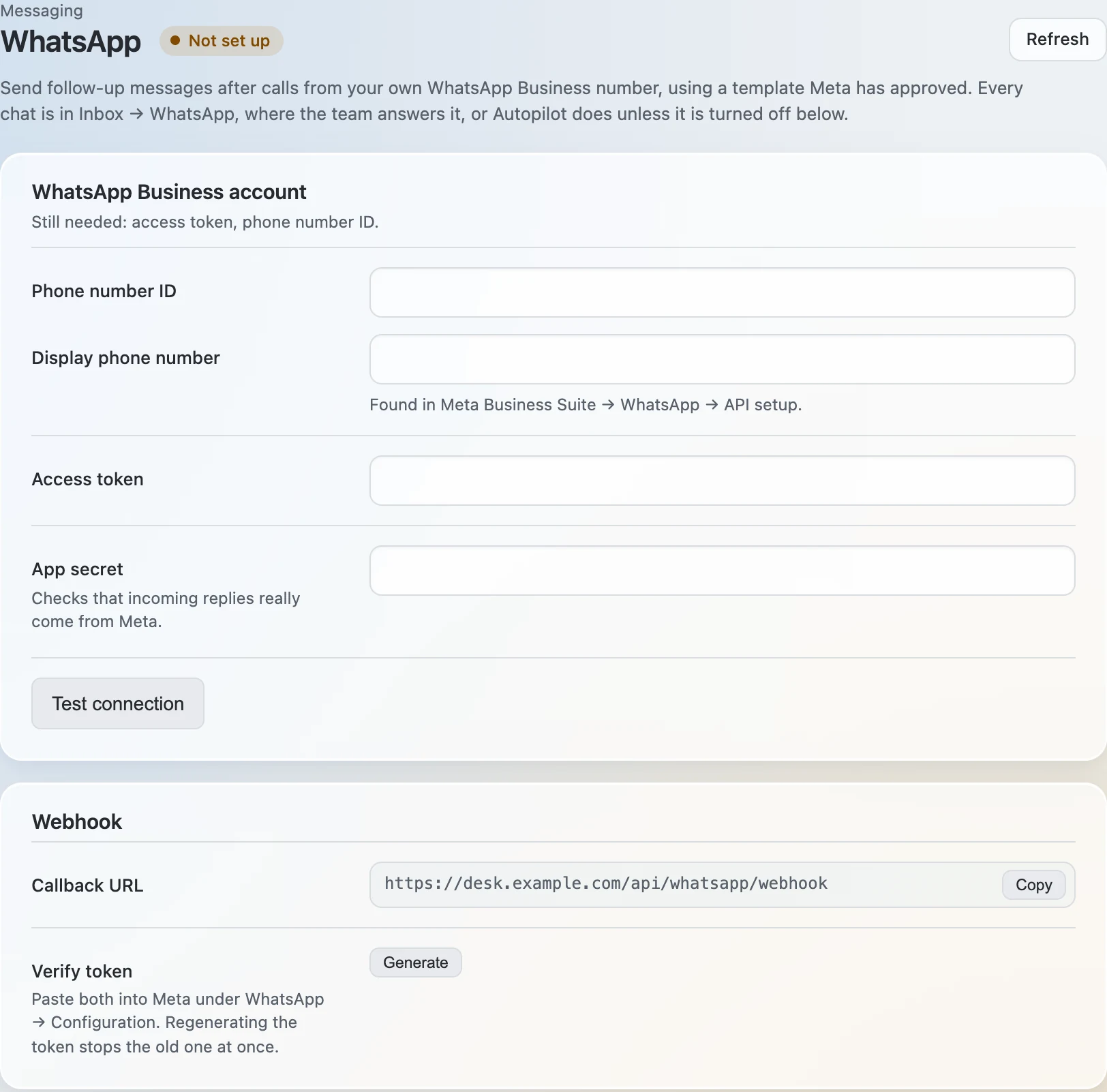
- Open Admin → Messaging → WhatsApp. Enter Phone number ID, Display phone number, Access token and App secret.
- Enter a Verify token of your own choosing, and press Save changes. The pill reads Set up once nothing is missing.
- Give Meta the webhook. In your Meta app under WhatsApp → Configuration, enter the callback URL the page shows and the verify token you saved.
The 24-hour rule
- WhatsApp lets a business write freely for 24 hours after the customer's last message. After that only an approved template may be sent, and the reply box says so.
- Where the page has Send template, enter the name and the language of a template approved for your WhatsApp account.
- The team answers by hand, with text and one attachment of up to 1 MB. Follow-ups and Autopilot are not available in this workspace yet.
Your own WhatsApp Business number, connected through Meta. Every chat is in Inbox → WhatsApp, where the team answers it or Autopilot does. After a call, the desk can follow up with a message from a template Meta has approved.
Before you start
- A Meta business account, a Meta app with WhatsApp on it, and a phone number added to it.
- From Meta Business Suite → WhatsApp → API setup: the number's Phone number ID and an access token. Use a system user's token that never expires: a temporary one stops working, and the test then says Meta no longer accepts it.
- The Meta app's App secret. The desk uses it to check that incoming messages really come from Meta.
- The WhatsApp plugin switched on in Admin → Apps.
Connecting the number
- Open Admin → Messaging → WhatsApp. Enter Phone number ID, Display phone number, Access token and App secret.
- Press Save changes, then Test connection. The answer Connected carries the verified name and the number Meta holds for it.
- Give Meta the webhook. In the Webhook panel, press Generate to make a verify token. Then copy the Callback URL and the Verify token into Meta under WhatsApp → Configuration.
- Set the follow-up. Template name and Template language must match a template approved in Meta. Send follow-up messages automatically decides whether the messages leave by themselves or wait for review.
- Decide who answers. Autopilot answers WhatsApp chats lets Autopilot reply in the customer's language. Each chat has its own switch in Inbox → WhatsApp, and a person writing there switches it off for that chat.
The 24-hour rule
- WhatsApp lets a business write freely for 24 hours after the customer's last message. After that only an approved template may be sent, and the reply box says so.
- Template after a letter names the template Autopilot uses to tell a WhatsApp customer that a quotation or an invoice has gone by email, once their 24 hours are over. It needs a template approved in Meta with one variable.
- Templates go from the office number only.
More numbers
A person's own work number can be connected beside the office number, so that its chats come to the desk as theirs.
- Add the number in WhatsApp Manager → Phone numbers → Add phone number, and confirm it with the SMS or voice code. Its Phone number ID is shown there.
- In the More numbers panel, enter the Number with its country code, the Phone number ID and Whose number it is, and press Connect number.
Take a number that is on WhatsApp on no phone, a new SIM for instance: once it is registered to the account, it works only through the desk.
- Disconnect on a number stops its messages coming to the desk; its chats stay its owner's.
- Rate per message (USD) is used only to show message costs in Admin → Usage → Costs. Meta bills you directly.