Quotation review in ERP
Review the document and covering email, resolve price exceptions when prompted, then send or save an email draft.
 DESKTalk to our team
Let AI agents prepare the work and keep the decisions visible to your team. Review the source enquiry, quotation, owner and activity history. Stay close to the work with the native Android and iOS apps, team updates and conversations with Ask Desk in Telegram.
 Enlarge screen
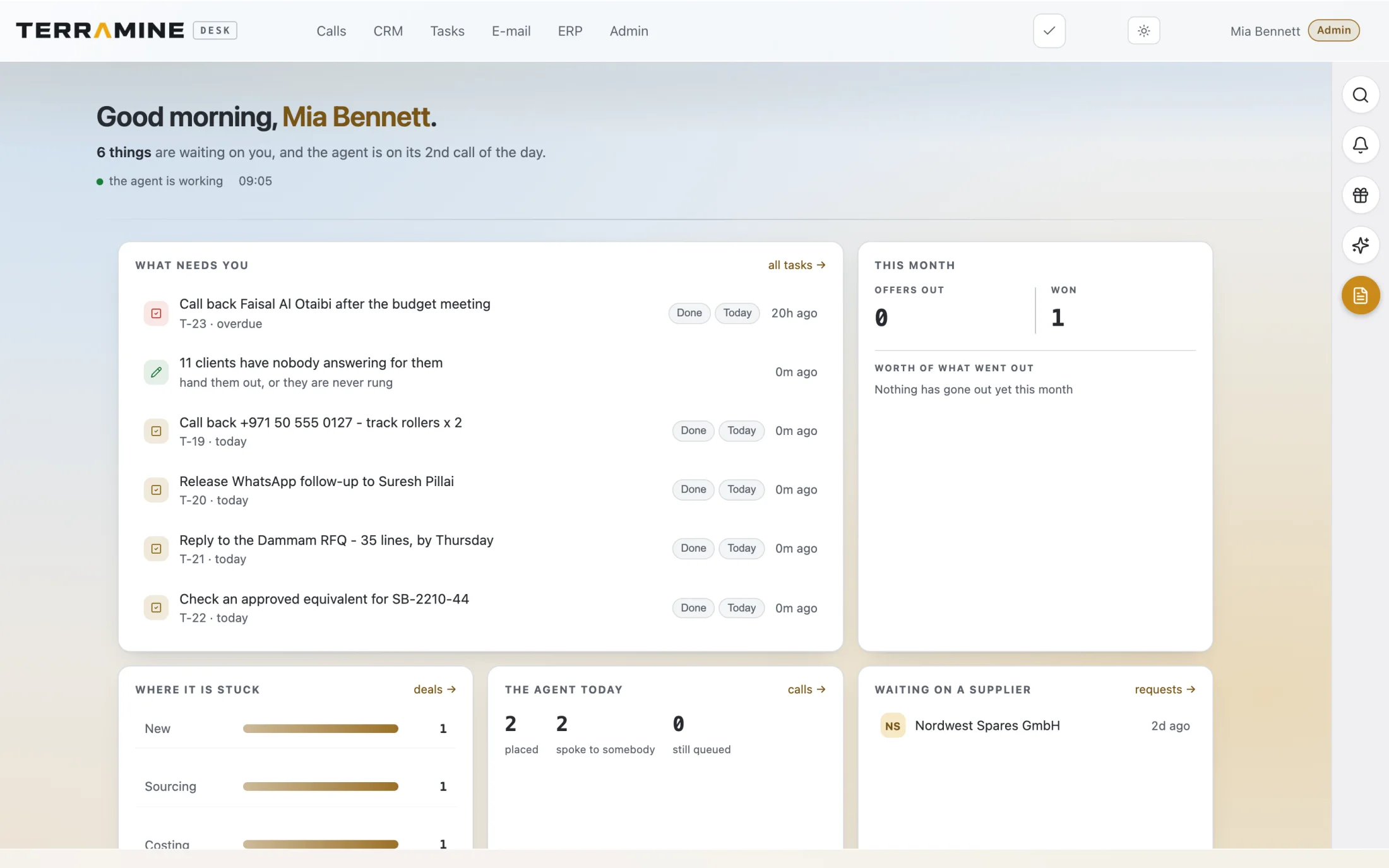
Terramine Desk brings outstanding tasks, account ownership, agent activity and pending supplier responses into view.
 Enlarge screen
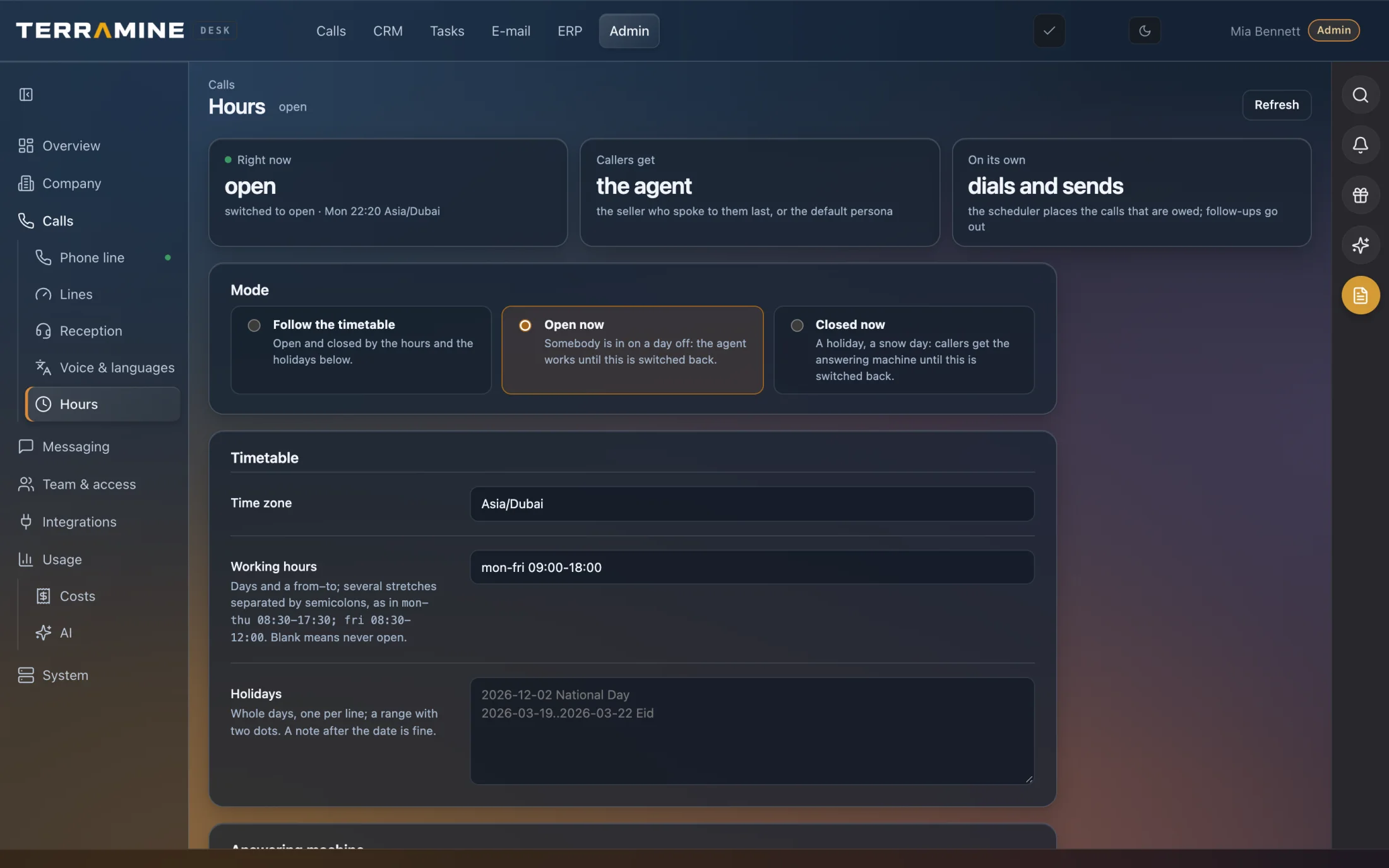
Working hours, time zones and holidays make the operating rules visible and adjustable.
Screenshots from the product. The interactive demo is a simplified guided example, not a copy of every product screen. Screenshots show the product version captured at the time.
Review quotations and their covering emails in ERP before sending. When prices differ from a previous quotation, or a line sells at or below cost, the product asks the operator to resolve those price questions. Ask Desk presents plans for actions such as sending or dialling, which the operator confirms.
Chat with Terramine Desk to find information, understand what’s happening and get work done across CRM, calls, email, orders and tasks.
Built-in tools connect the AI to your workspace records and actions. Ask in your own words: the assistant can look up information, bring the context together and prepare changes for your approval.
Review proposed plans before confirming. Small edits to the open record can apply immediately; enabled automation follows its configured rules.
Discuss your workflowThe sample quote is prepared from the order. A person checks quantities, prices and delivery wording before sending it from the quotation email window.
Explore the quotation workflowReview the document and covering email, resolve price exceptions when prompted, then send or save an email draft.
Trace the steps from the original request to a changed quantity or reviewed offer.
See which parts of the work belong to the agent, sales or operations.
Configure access around team responsibilities in the production workspace.
Use the transcript and summary to understand what was actually discussed.
See tasks, agent activity and outstanding supplier responses on the Home screen.
Keep your workspace close on Android and iPhone. Review calls, look up customers, manage tasks and read your inbox. Ask Desk a question or dictate it while you are away from your computer.
Follow calls, incoming email, supplier requests, quotations and task activity in your team’s Telegram group. See who acted and when a person needs to step in, with topics to keep busy conversations organised.
Ask about customers, calls, orders or tasks directly in Telegram. Continue the conversation with follow-up questions and review proposed actions before choosing to run them.
Review happens where the work is done: in ERP for quotations and price exceptions, in Email for messages, and in Ask Desk for proposed actions. There is no separate central quotation-approval queue.
Yes. Native Android and iOS apps connect to your Terramine Desk workspace. Review calls, look up customers, manage tasks, read your inbox and open orders and documents. Ask Desk is there too.
Once configured, the bot posts work updates to your team’s Telegram group. These include calls, email, supplier requests, quotations and task changes, with notices when a person needs to act. Groups with topics can separate incoming calls, outgoing calls, email, ERP, tasks and operational alerts.
Yes. With Telegram chat enabled, you can ask questions in your team’s group or in a private chat linked to your workspace account. In the group, mention the bot, use /ask or reply to one of its messages. Ask follow-up questions in the same conversation. When Desk proposes actions, it shows a plan for you to review and choose whether to run.
Yes. Link your Telegram account to your workspace login and choose updates about your customers, your own activity, tasks and reminders. Broader personal feeds require an administrator’s grant within your workspace access. The shared team group has its own audience and settings.
No. It shows a selected customer-facing workflow using fictional data. Private prompts and operational decision rules are not part of the demo.
No. Sending in the demo records a local simulated message only.
Your pilot should define responsibilities, approval points and operating rules for your business.