Ask what needs attention
Find your outstanding tasks, overdue follow-ups or work that has no owner. Ask about a customer or project to narrow the list and see the relevant context.
 DESKTalk to our team
Ask Terramine Desk what needs attention, create a follow-up or update a deadline in your own words. Review the proposed changes, then give the work a clear owner—with the customer and source record close at hand.
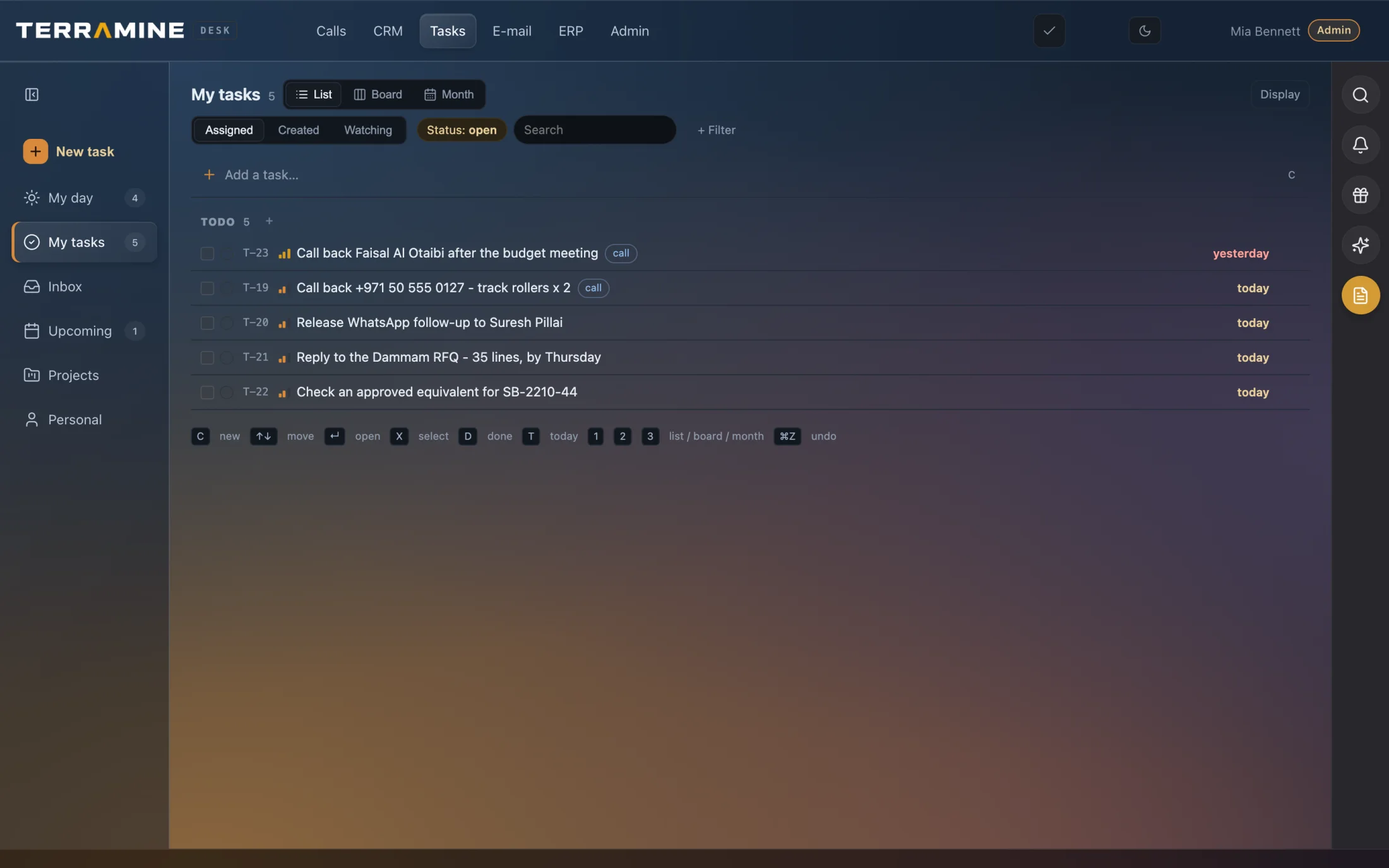 Enlarge screen
Review owners, due dates and task status in list, board or month view. Ask Desk can help you find the work and prepare updates for approval.
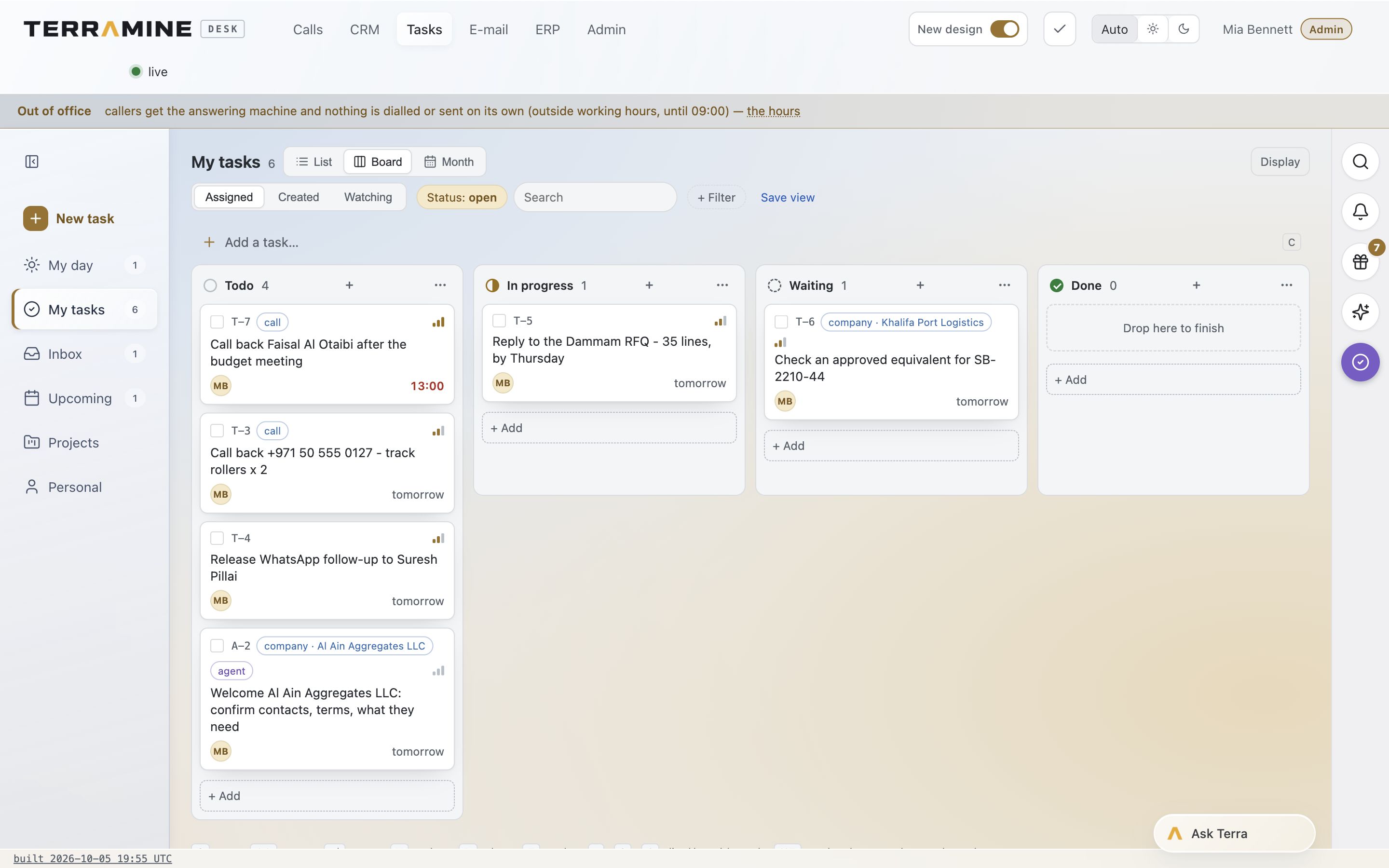 Enlarge screen
Review tasks across Todo, In progress, Waiting and Done, with owners and due dates visible on each card.
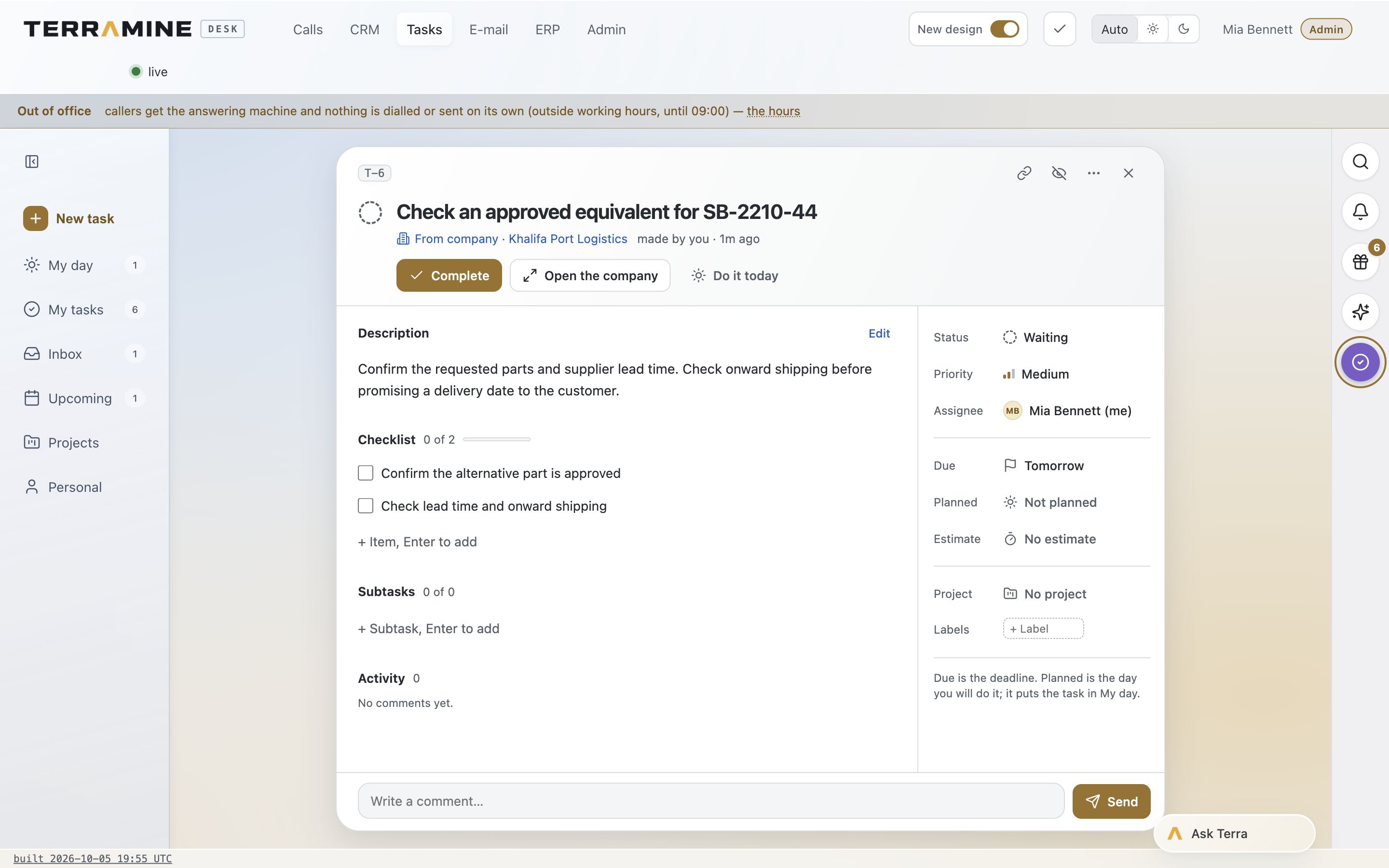 Enlarge screen
Open a task to see its linked customer, description, checklist, owner, priority and deadline.
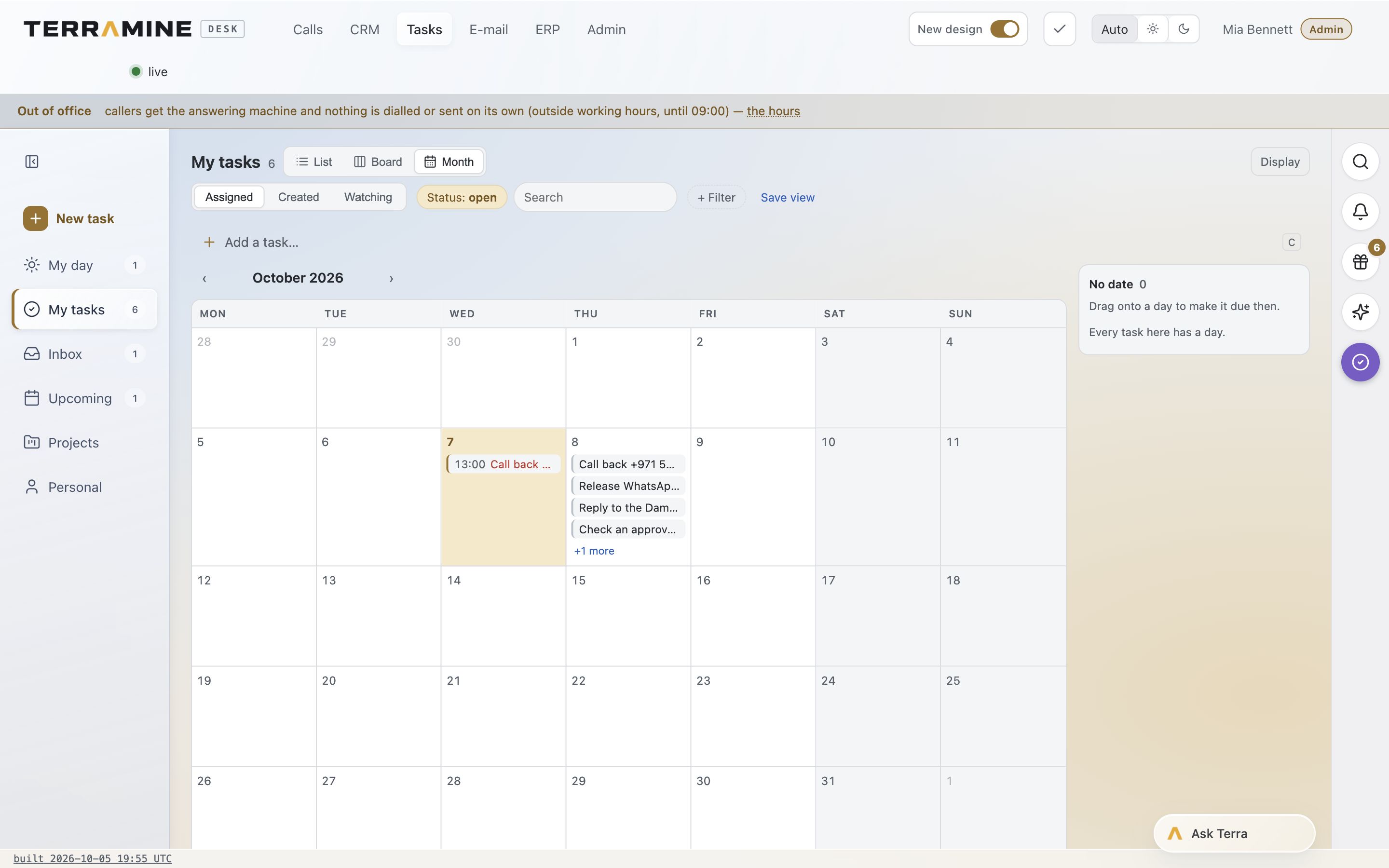 Enlarge screen
View dated tasks on the calendar and open the work behind each entry.
Screenshots from the product. The interactive demo is a simplified guided example, not a copy of every product screen. Screenshots show the product version captured at the time.
Chat with Terramine Desk to find information, understand what’s happening and get work done across CRM, calls, email, orders and tasks.
Built-in tools connect the AI to your workspace records and actions. Ask in your own words: the assistant can look up information, bring the context together and prepare changes for your approval.
Review proposed plans before confirming. Small edits to the open record can apply immediately; enabled automation follows its configured rules.
Discuss your workflowAster Equipment has requested delivery within seven days. Open the example task to see who owns the supplier and shipping check, review the linked order, then change the due date or leave an update. The demo uses fictional records.
Explore the follow-up tasksFind your outstanding tasks, overdue follow-ups or work that has no owner. Ask about a customer or project to narrow the list and see the relevant context.
Ask AI to prepare a task with a title, owner, due date, priority and notes. Link it to the relevant customer, deal, order or email, then review before creating it.
Move a deadline, change the owner, adjust the priority or mark a task complete through Ask Desk. Check the proposed changes before applying them.
Open the linked record to understand the customer request or commercial decision behind the work. Notes keep the next person informed when responsibility changes.
Keep human follow-ups and scheduled agent calls visible. Ask Desk can propose a callback for a person or an AI voice agent, with a time and a reason for the call.
Group related tasks in a project and ask about its open work, members and milestones. AI can also propose creating a project or updating its dates and status.
Use list, board and month views to organise the work. Keep tasks in a project, link them to a customer or commercial record, or manage them on their own. Personal tasks stay private, and private projects are visible to their members. Your team can work directly in the task view or use Ask Desk to prepare changes.
Ask Desk can find outstanding and overdue work, read task details and propose new tasks. It can also prepare changes to titles, owners, due dates, planned dates, priorities, notes, projects and task status. Review the proposed changes before applying them.
Yes. Ask Desk can prepare a task linked to a company, lead, deal, order, supplier request, document or email. Specify the action, owner and deadline, then review the proposal.
No. A task for a person records work that person must carry out. An AI callback is a separate scheduled action for a configured voice agent. Creating an ordinary task does not make the AI perform arbitrary work.
Yes. When requesting a callback, specify that the time is the customer’s local time. Review the proposed schedule and whether the call is assigned to a person or an AI voice agent before confirming.
No. Ask Desk’s task and project tools respect the requesting user’s access. Personal tasks are private to their owner, and private projects are visible to their members.
Yes. Open a task, change the owner or due date, add a note, and mark it complete.
No. Demo changes are stored in this browser only. Reset demo restores the starting records.
Yes. The demo includes task creation linked to the sample customer.