
Documentation / Set-up guides / Channels
Telegram
On this page
This guide is for
Telegram keeps your team informed in its group and, if you choose, brings customers' messages into Inbox.
- In Telegram, ask @BotFather for a new bot with your company's name, and copy its token.
- Open Admin → Apps, find Telegram and press Settings. Paste the token into Bot token and press Connect.
- Add the bot to your team's group and send, in that group, the message the page shows. It carries a code that works for 15 minutes.
- Press Send a test message. The pill reads Working once the group is linked.
- Post task updates to the team group switches the group's notices on and off.
- Receive customer messages in Inbox makes the bot a channel for customers; Customer chat link is the address to give them.
- Disconnect stops the bot here and removes the group's link and everyone's personal links.
Telegram works two ways: a bot customers write to, whose chats are in Inbox → Telegram, and a bot that keeps your team informed in its group. One bot may do both.
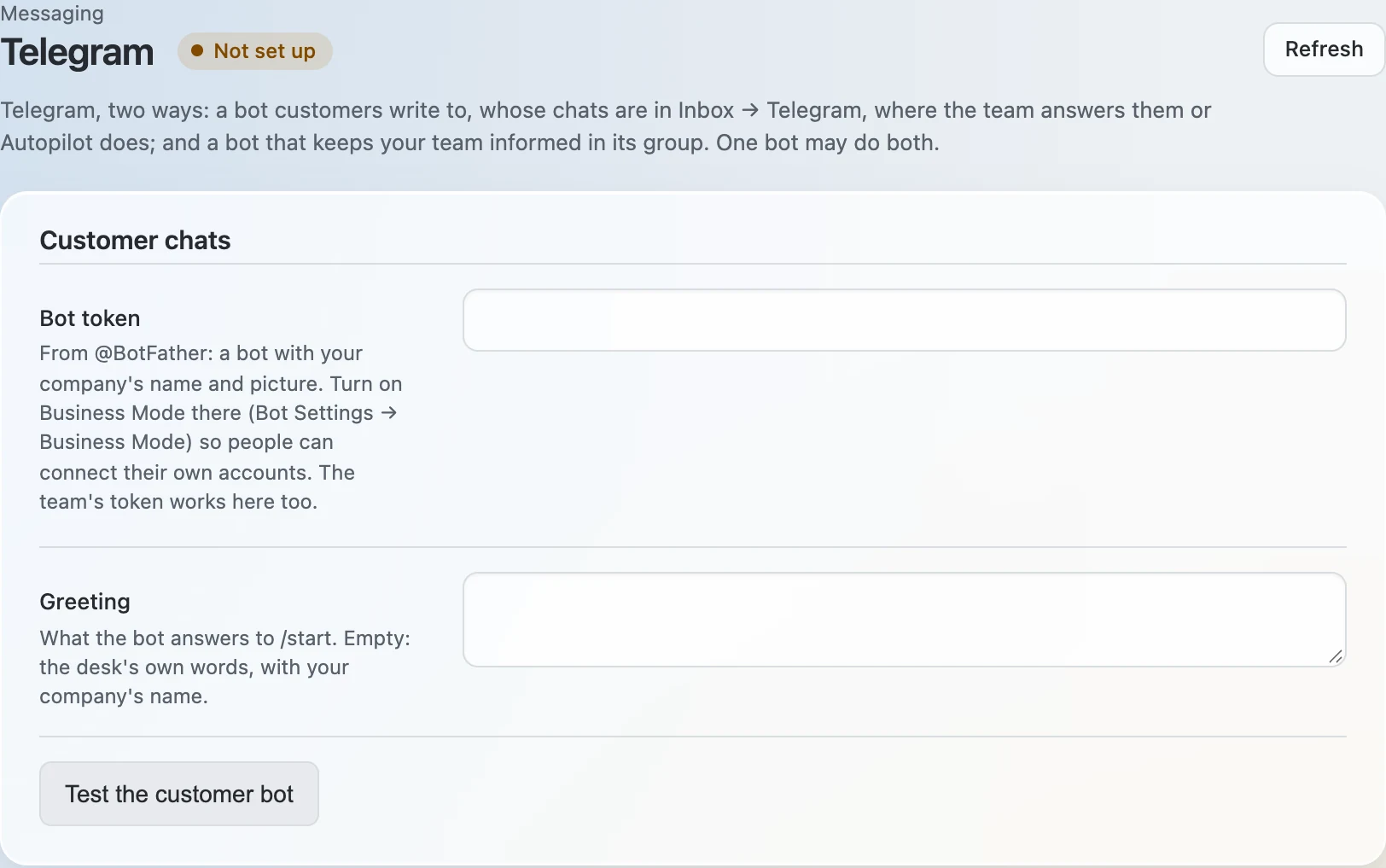
A bot for customers
- In Telegram, ask @BotFather for a new bot with your company's name and picture, and copy its token.
- Turn on Business Mode for the bot in @BotFather (Bot Settings → Business Mode), if your people are to connect their own Telegram accounts.
- Open Admin → Messaging → Telegram, paste the token into Bot token under Customer chats, and press Save changes.
- Press Test the customer bot. The answer names the bot and the link customers write to.
- Put Link for customers on your website, in your brochure and under your emails. A customer who opens it and presses Start is a new chat in Inbox → Telegram.
- Greeting is what the bot answers to /start. Left empty, the desk answers in its own words, with your company's name.
- Autopilot answers Telegram chats decides whether Autopilot replies; a person can always take the chat.
- The bot answers at any time once the customer has written. It never writes first.
- Personal accounts: each person connects their own Telegram on Your account, through Telegram's Settings → Telegram Business → Chatbots. An admin can disconnect one here; in Telegram the bot stays connected until its owner removes it there.
A bot for the team's group
- Add the bot to your team's group in Telegram.
- Under Team group · bot, enter the Bot token and the Group chat ID. A group's ID starts with -100.
- Press Save changes, then Test connection. The answer says whether the bot is in that group.
- Choose what is posted under Notifications: calls, letters, outreach, the agent's follow-ups, ERP and tasks each have a switch, and each kind goes to its own topic in the group.
- For topics, the bot needs the right to manage topics in the group.
- Allow questions to the AI assistant lets the team ask the assistant from the group.
- Each person links their own chat with the bot on Your account, for their own notices.