
Documentation / Set-up guides / Accounting and ERP
ERP systems
On this page
For a Desk on its own deployment. A hosted workspace does not have this page. Ask us what your workspace offers in its place.
If your company already runs an ERP, the desk works on top of it: your records stay where they are kept, and the desk reads and writes them by rules you set.
The rules of every connection
- One owner for each kind of record. Customers, suppliers, parts, orders, invoices: for each kind either their system or the desk is the master, or the kind is not exchanged at all.
- Their number is kept on ours. Each record is linked to its twin once, so nothing is sent twice.
- Drafts, unless you say otherwise. Documents arrive in their system as drafts and a person posts them. Post if exact posts a document only when it matched exactly and the Autopilot action Post documents in their ERP is on.
- Off means everything stops. The switch on a system stops the exchange and every send. The links and the settings are kept.
Connecting a system
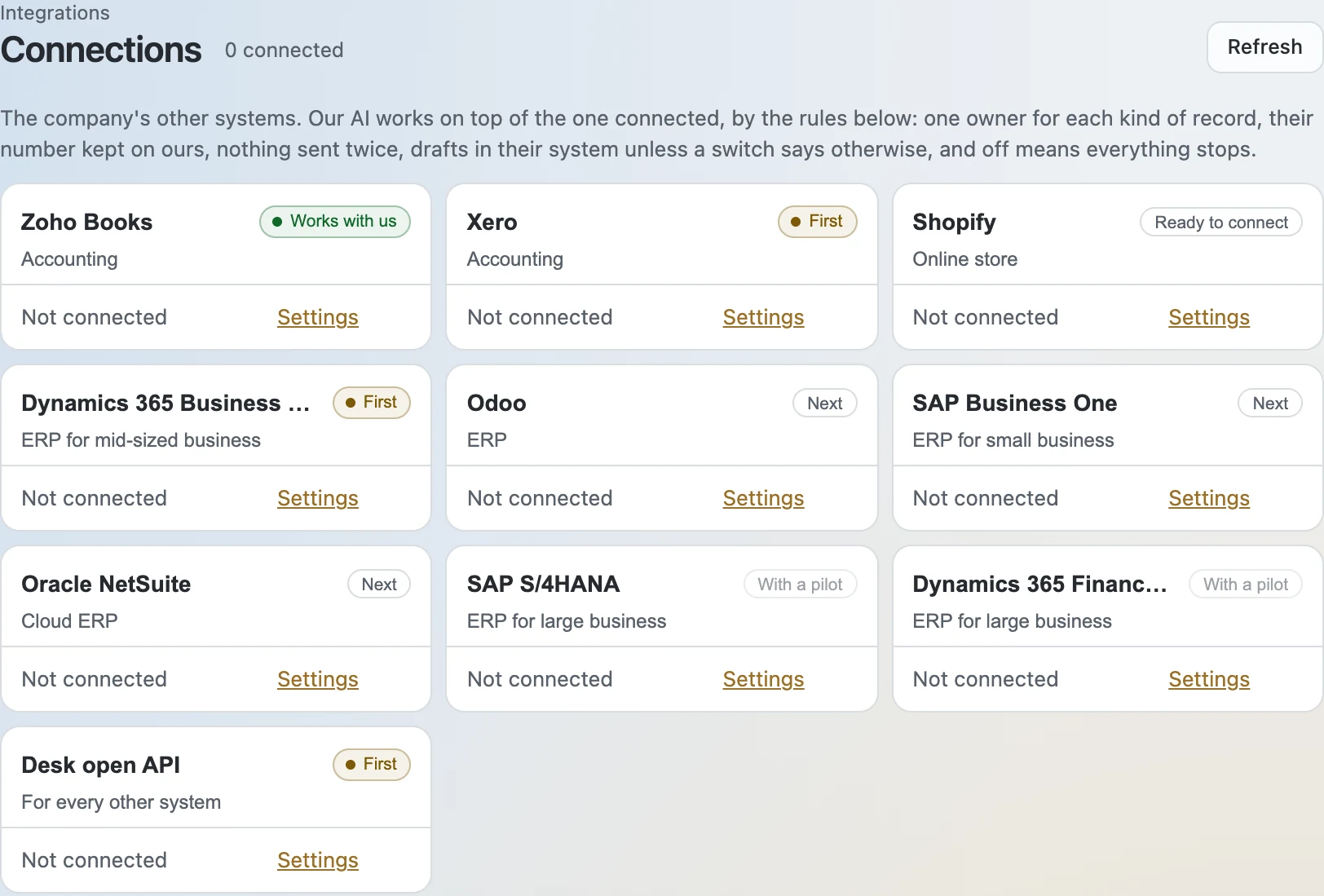
- Open Admin → Integrations → Connections and click the system's tile.
- Fill in the sign-in the panel asks for — the table below says what each system needs — and press Connect. The desk signs in before it saves anything, and a refusal is shown as it came.
- Choose how the records are kept: Desk keeps the records, Their ERP keeps them or Split. Then set the owner of each kind of record in the table.
- Choose Draft or Post if exact for the documents written to them.
- Press Read and send now for the first exchange, and read What happened below it: every record read, sent or refused is a row.
| System | What their side prepares | What you enter |
|---|---|---|
| Dynamics 365 Business Central | Their administrator consents for the desk's application at Microsoft, once, then adds it on Business Central's Microsoft Entra Applications page with the permission sets it may use. | Their tenant and the environment, production or sandbox; then the company. |
| Odoo | An API key of an Odoo user: Preferences → Account Security → New API key. | The address, the database and the API key. |
| SAP Business One | A Business One user, and a path from the desk to the Service Layer: the server usually sits inside their network, so a VPN or a small agent. | The Service Layer address, the company database, the user and the password. |
| Oracle NetSuite | An integration record for OAuth 2.0 machine to machine, and a certificate from OAuth 2.0 Client Credentials Setup. | The account id, the client id, the certificate id and the certificate's private key. |
| SAP S/4HANA | A communication arrangement their SAP team sets up for Business Partner, Product, Sales Quotation, Sales Order and Purchase Order, with its communication user. | The API address, the communication user and password, and the organisation the documents are made in. |
| Dynamics 365 Finance & SCM | An app registered in their Microsoft Entra ID and added under System administration → Microsoft Entra applications. | The environment's address, the tenant id, the application id, the client secret and the legal entity. |
Good to know
- A connected system is read every 15 minutes. Business Central also sends notices of changes as they happen.
- The chip on a tile says how far a connection has come: Works with us, Ready to connect, First, Next or With a pilot. SAP S/4HANA and Dynamics 365 Finance & SCM are connected together with the customer's own IT, as a pilot.
- Business Central's standard API carries no custom fields: a customer's own fields need a separate API from their partner.
- A send that fails is tried again by itself, at growing intervals of up to six hours. The health line shows what is waiting and what was refused, with the last error.
- Disconnect forgets the sign-in and keeps the links: connecting again goes on from them.