
Documentation / Set-up guides / Channels
Instagram and Facebook
On this page
On this page
This guide is for
Direct messages to your Instagram professional account arrive in Inbox → Instagram, and messages to your Facebook Page in Inbox → Messenger. Both connect through a Meta app: the one your WhatsApp number uses will do.
- The Instagram account must be Business or Creator. While the Meta app is in development, the account needs a role on the app.
- Instagram comes with the WhatsApp plugin: switch WhatsApp on in Admin → Apps.
- Generate an access token in Meta's App Dashboard under Instagram → API setup with Instagram login.
- Open Admin → Messaging → Instagram. Enter the Instagram account ID, the Username, the Access token, the App secret and a Verify token of your own choosing, and press Save changes.
- Give Meta the webhook. In your Meta app, configure webhooks for Instagram with the callback URL the page shows and the verify token you saved, and tick messages.
- Only messages come in. Comments under posts do not.
- Instagram allows a reply for 24 hours after the person's last message. It opens again when they write.
- The team answers by hand, with text only. Autopilot and loading earlier conversations are not available in this workspace yet.
Facebook Messenger
- A Facebook Page, and its Page ID from Meta Business Suite → Settings → Pages.
- A system user's token with the permissions pages_messaging and pages_manage_metadata, set never to expire.
- The Facebook Messenger plugin switched on in Admin → Apps.
- Open Admin → Messaging → Facebook. Enter Page ID, Page, Page access token, App secret and a Verify token of your own choosing, and press Save changes.
- Give Meta the webhook. Configure your Meta app with the callback URL the page shows and the verify token you saved, and subscribe the Page in Meta Business Suite.
- Messenger has no templates: 24 hours after the customer's last message nothing can be sent until they write again.
- The team answers inside the 24 hours, with one attachment of up to 1 MB. Autopilot is not available in this workspace yet.
Direct messages to your Instagram professional account arrive in Inbox → Instagram, and messages to your Facebook Page in Inbox → Messenger. Both connect through a Meta app: the one your WhatsApp number uses will do.
- The Instagram account must be Business or Creator. While the Meta app is in development, the account needs a role on the app.
- Instagram comes with the WhatsApp plugin: switch WhatsApp on in Admin → Apps.
- Generate an access token in Meta's App Dashboard under Instagram → API setup with Instagram login.
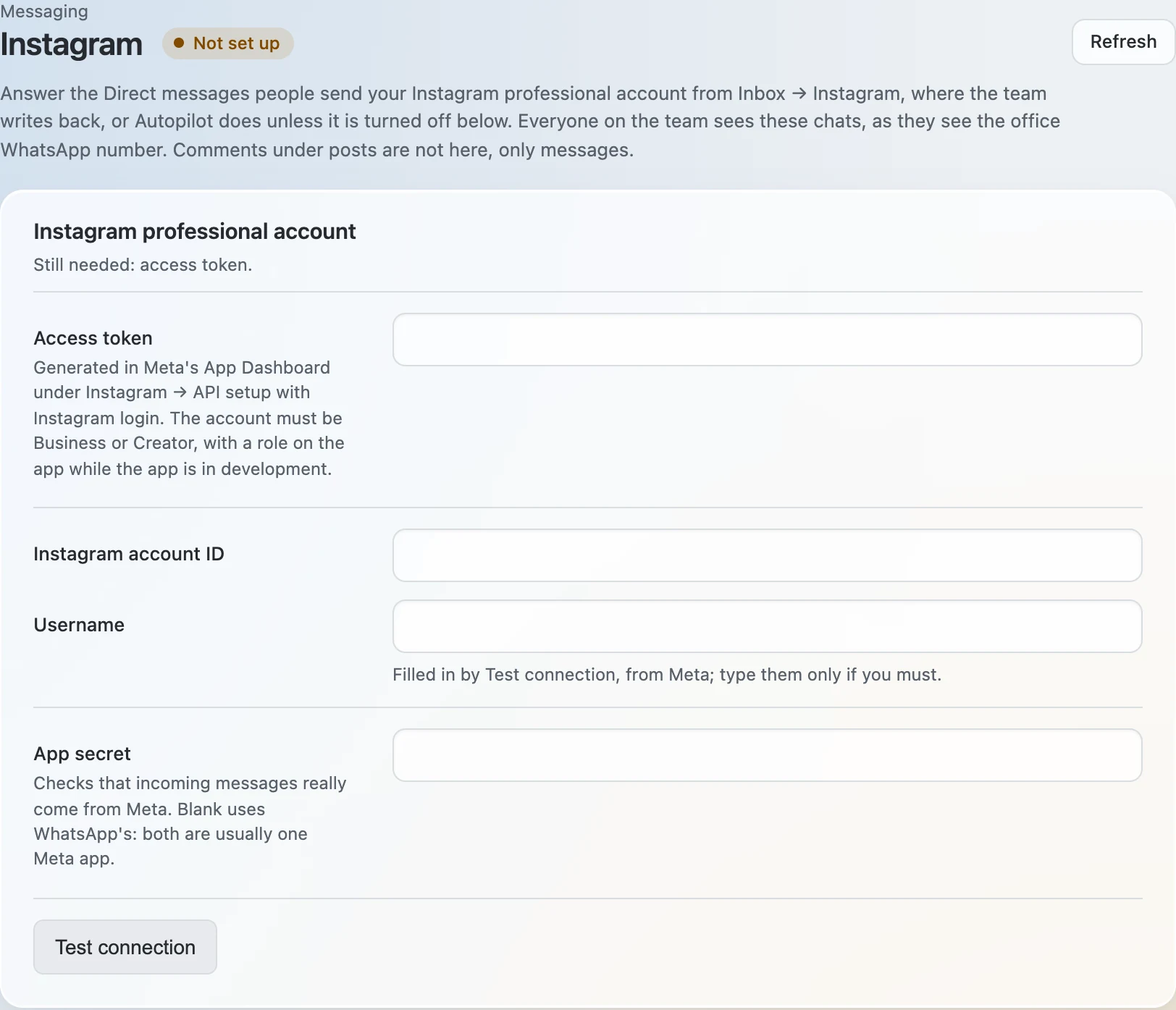
- Open Admin → Messaging → Instagram, paste the Access token and press Save changes. Leave App secret blank if Instagram and WhatsApp share one Meta app.
- Press Test connection. The test fills in Instagram account ID and Username from Meta and answers Connected as with the account's name. The first test that succeeds also loads the open conversations of the last 30 days into Inbox, without answering them.
- Give Meta the webhook. Generate a verify token, then paste the Callback URL and the Verify token into Meta under Instagram → API setup with Instagram login → Configure webhooks, and tick messages.
- Only messages come in. Comments under posts do not.
- Instagram allows a reply for 24 hours after the person's last message. It opens again when they write.
- Meta's token lives 60 days. The desk renews it by itself; if Meta refuses, the bell rings.
- Human Agent: a person answers for 7 days stretches the 24 hours for people, not for Autopilot. Turn it on only once Meta has granted it to your app.
- Autopilot answers Instagram messages decides whether Autopilot replies. A reply longer than 1,000 characters goes as several messages.
Facebook Messenger
- A Facebook Page, and its Page ID from Meta Business Suite → Settings → Pages.
- A system user's token with the permissions pages_messaging and pages_manage_metadata, set never to expire.
- The Facebook Messenger plugin switched on in Admin → Apps.
- Open Admin → Messaging → Facebook. Enter Page ID, Page access token and App secret, and press Save changes.
- Press Test connection. The test reads the Page's name from Meta and says whether the Page already sends its messages to the desk.
- Give Meta the webhook. Generate a verify token, then paste the Callback URL and the Verify token into Meta under your app → Messenger → Settings → Webhooks, and subscribe the Page to messages, messaging_postbacks, message_deliveries and message_reads.
- Press Subscribe the Page if the test said the Page does not send its messages here yet.
- Messenger has no templates: 24 hours after the customer's last message nothing can be sent until they write again.
- Autopilot answers Messenger chats decides whether Autopilot replies; Rules for replies tells it how.