
Documentation / Set-up guides / Workspace
Phone app
On this page
On this page
This guide is for
The phone app signs in to this desk with a code from your screen, and shows the desk's notices on the lock screen once a push key is saved here.
Signing the app in
- On the computer, open Your account from the account menu and find Sign the app in from here.
- Press Show a code and point the app at it. The app learns the desk's address and signs in as you, once, within two minutes. Nothing is typed on the phone.
Every phone and browser signed in as you is listed on the same page under Signed in on.
Notices on the iPhone's lock screen
- In Apple Developer, open Certificates, Identifiers & Profiles → Keys and create a key with Apple Push Notifications service (APNs) ticked. Download its .p8 file: Apple lets you download it once. Note the key's ID; the Team ID is on the Membership page.
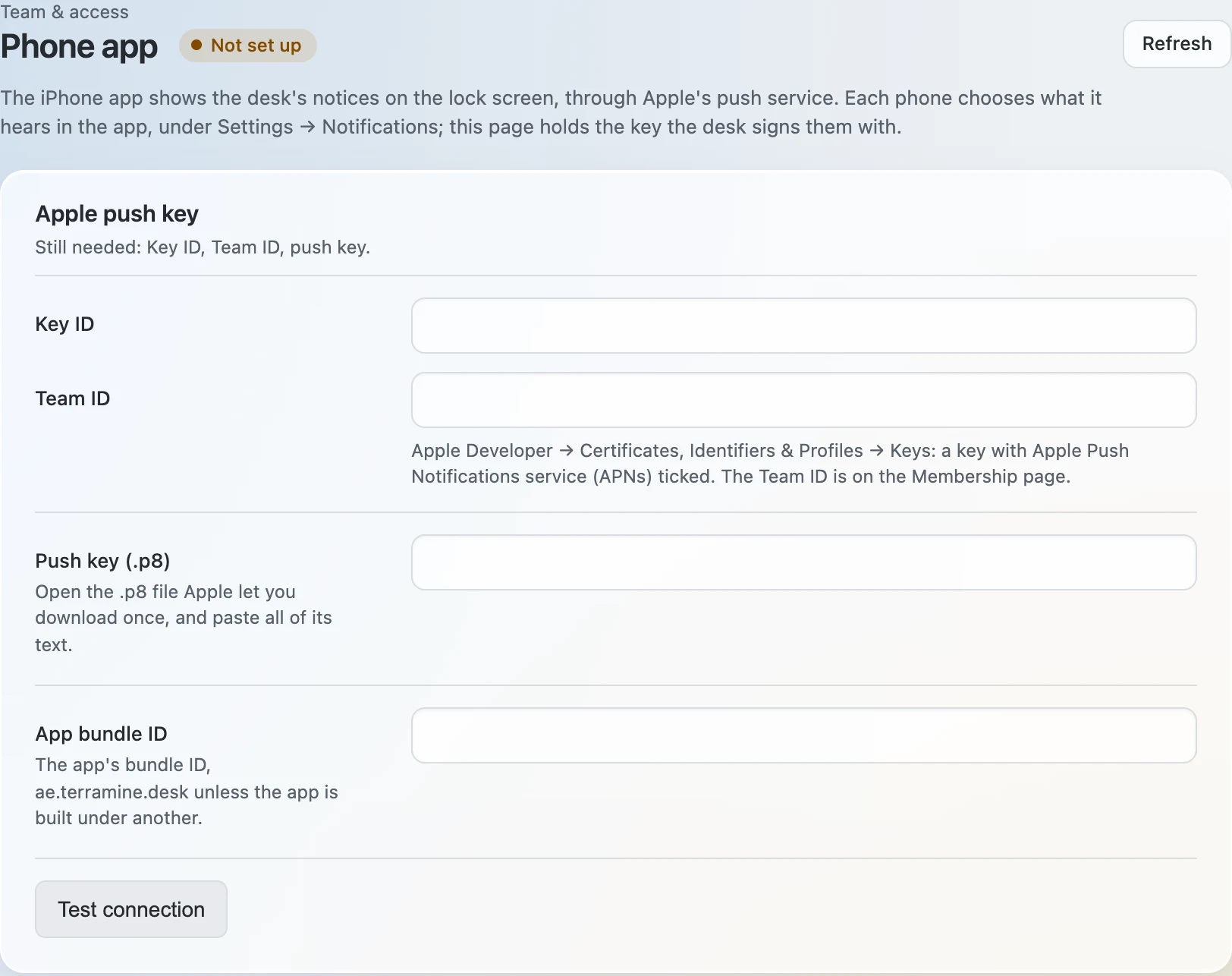
- Open Admin → Team & access → Phone app. Enter Key ID and Team ID, and paste all the text of the .p8 file into Push key (.p8).
- Leave App bundle ID empty, unless the app is built under an identifier of your own.
- Press Save changes, then Test connection. The answer you want is Connected: Apple accepts the key.
- If Apple refuses the key, check the Key ID and the Team ID against the Apple Developer account. If Apple takes the key but not the app, the bundle ID is not one this key may write to.
- What each phone hears is chosen on the phone, in the app, under Settings → Notifications.
- For Android, the panel Android · Firebase Cloud Messaging takes the Firebase Android app ID and the service-account key JSON of the same Firebase project as the app build. It needs an Android build with Firebase enabled.
- In this workspace the notices are about tasks: a task moved, and a reminder.
The phone app signs in to this desk with a code from your screen, and shows the desk's notices on the lock screen once a push key is saved here.
Signing the app in
- On the computer, open Your account from the account menu and find Sign the app in from here.
- Press Show a code and point the app at it. The app learns the desk's address and signs in as you, once, within two minutes. Nothing is typed on the phone.
Every phone and browser signed in as you is listed on the same page under Signed in on.
Notices on the iPhone's lock screen
- In Apple Developer, open Certificates, Identifiers & Profiles → Keys and create a key with Apple Push Notifications service (APNs) ticked. Download its .p8 file: Apple lets you download it once. Note the key's ID; the Team ID is on the Membership page.
- Open Admin → Team & access → Phone app. Enter Key ID and Team ID, and paste all the text of the .p8 file into Push key (.p8).
- Leave App bundle ID empty, unless the app is built under an identifier of your own.
- Press Save changes, then Test connection. The answer you want is Connected: Apple accepts the key.
- If Apple refuses the key, check the Key ID and the Team ID against the Apple Developer account. If Apple takes the key but not the app, the bundle ID is not one this key may write to.
- What each phone hears is chosen on the phone, in the app, under Settings → Notifications.