
Documentation / Set-up guides / Channels
Mailboxes
On this page
On this page
The desk reads and sends from the mailboxes you connect. A work mailbox is the company's: everybody in Inbox sees it. A personal mailbox is its owner's: only they see its letters, and everybody else sees only that it is connected.
Connecting a mailbox
Anyone who works in Inbox can connect their own mailbox as personal. Only an admin connects a work mailbox.
- Open Inbox → Mailboxes and press Connect a mailbox.
- Pick the provider: Google, Microsoft, iCloud, Yahoo, Zoho, Fastmail, or Another server for any IMAP and SMTP mailbox typed by hand. The search box finds other providers.
- Do what the provider's step asks. The screen says exactly what to do, with links to the right pages at the provider.
- Press Check connection. The check signs in for reading and for sending; it sends no test letter and moves nothing. If the provider refuses, nothing is connected and nothing is kept, and the screen lists what usually fixes it.
- Choose who sees its letters, Personal or Work, and press Connect. The desk reads the letters that arrive from then on; letters already in the inbox are left as they are.
What each provider asks
- Google. Where sign-in is set up: your address, then Google's own page, where the desk asks to read the letters that arrive and to send the ones you write — never to delete mail, and never your contacts, files or calendar. Where it is not: an app password, which needs 2-Step Verification on the Google account. Your usual Gmail password does not work.
- Microsoft. Only through Microsoft's own sign-in: Microsoft lets mail apps in no other way.
- iCloud, Yahoo, Fastmail. An app password, created in the provider's account settings.
- Another server. A user name and password, and the incoming and outgoing servers with their ports and encryption.
After a mailbox is connected
- Its settings hold its name, whether it is work or personal, who it is shared with and who may send from it, the notifications, and whether the company's robot reads it.
- Sign in again or Can't read it on a mailbox means the provider has stopped letting the desk in: open the mailbox's settings and sign in again, or check and keep the password.
- Disconnect stops the reading and the sending and forgets the password or the sign-in. Letters already read stay.
- One address connects once, and a desk keeps up to 200 mailboxes.
The desk reads and sends from the mailboxes you connect. A work mailbox is the company's: everybody in Inbox sees it. A personal mailbox is its owner's: only they see its letters, and everybody else sees only that it is connected.
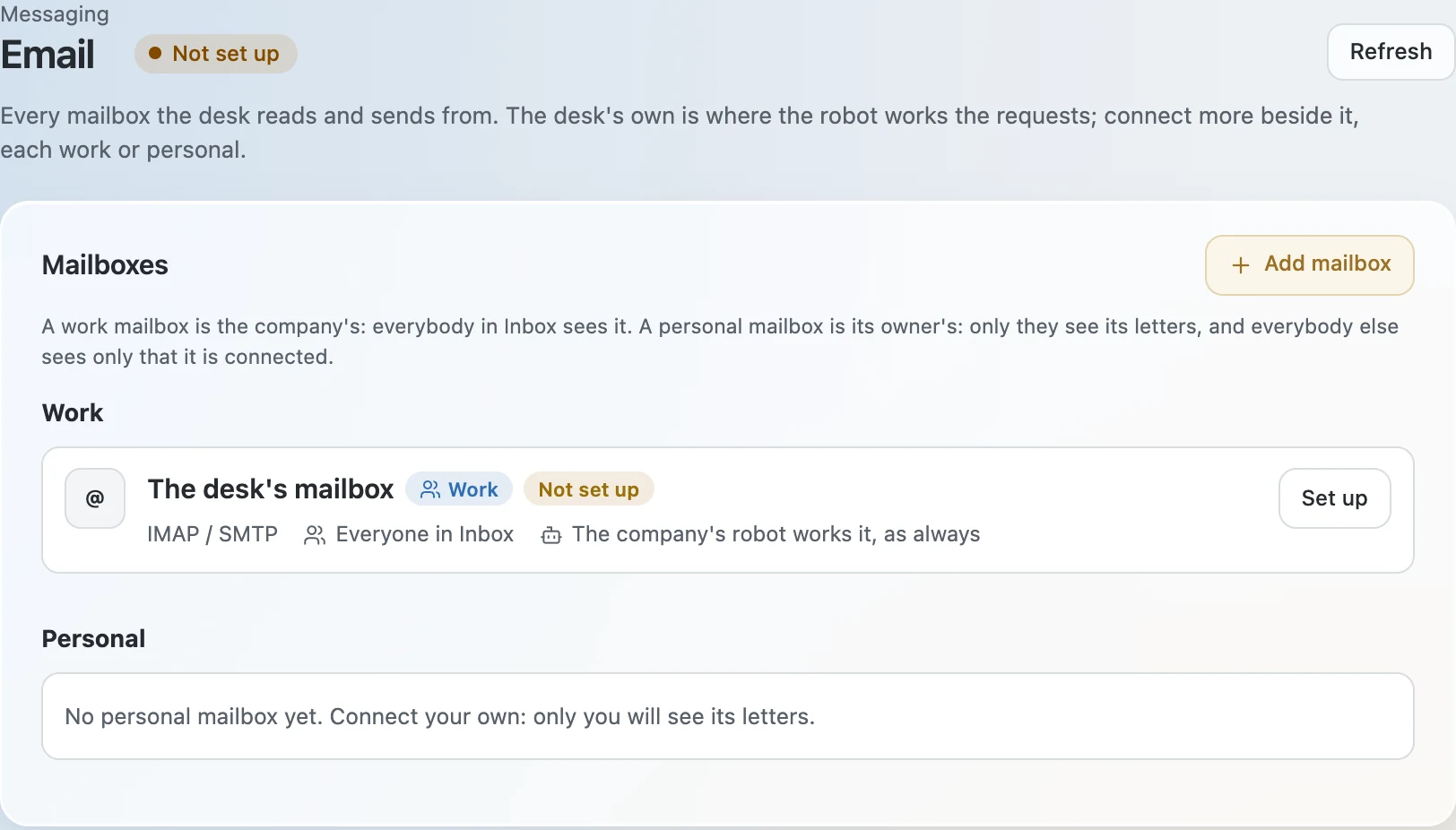
The desk's own mailbox
This is the mailbox the robot works: the requests that arrive here are read, sorted and answered. A dedicated mailbox is best; you can forward a copy of your shared sales inbox to it.
- Open Admin → Messaging → Email and open the desk's own mailbox from the list of mailboxes.
- Choose the connection type. Microsoft 365 signs in with an app registered in Microsoft Entra, and no password is stored. IMAP / SMTP connects any mailbox with a user name and a password.
- For Microsoft 365, enter the Email address, and the Tenant ID, Client ID and Client secret from the app registration. The servers fill themselves in.
- For IMAP / SMTP, enter the Email address, the Password, and the incoming (IMAP) and outgoing (SMTP) servers with their ports. The usual ports, 993 and 587, are filled in.
- Set Sending. From is the name and address customers see. Send follow-up emails automatically decides whether the letter after a call leaves by itself or waits as a draft.
- Press Save changes, then Test connection. The test opens the inbox and signs in to the outgoing server. It sends nothing.
Connecting a mailbox
Anyone who works in Inbox can connect their own mailbox as personal. Only an admin connects a work mailbox.
- Open Inbox → Mailboxes and press Connect a mailbox. On Admin → Messaging → Email the same screens open with Add mailbox.
- Pick the provider: Google, Microsoft, iCloud, Yahoo, Zoho, Fastmail, or Another server for any IMAP and SMTP mailbox typed by hand. The search box finds other providers.
- Do what the provider's step asks. The screen says exactly what to do, with links to the right pages at the provider.
- Press Check connection. The check signs in for reading and for sending; it sends no test letter and moves nothing. If the provider refuses, nothing is connected and nothing is kept, and the screen lists what usually fixes it.
- Choose who sees its letters, Personal or Work, and press Connect. The desk reads the letters that arrive from then on; letters already in the inbox are left as they are.
What each provider asks
- Google. Where sign-in is set up: your address, then Google's own page, where the desk asks to read the letters that arrive and to send the ones you write — never to delete mail, and never your contacts, files or calendar. Where it is not: an app password, which needs 2-Step Verification on the Google account. Your usual Gmail password does not work.
- Microsoft. Only through Microsoft's own sign-in: Microsoft lets mail apps in no other way.
- iCloud, Yahoo, Fastmail. An app password, created in the provider's account settings.
- Another server. A user name and password, and the incoming and outgoing servers with their ports and encryption.
Sign-in with Google and Microsoft
For people to connect a Gmail, Google Workspace, Microsoft 365 or Outlook.com mailbox by signing in, with no password kept, the desk needs an app of its own at each provider. It is set up once, in the panel Sign-in with Google and Microsoft on Admin → Messaging → Email.
- Copy the Redirect URI the panel shows for the provider.
- For Google: in Google Cloud, open APIs & Services → Credentials → Create OAuth client ID, of type Web application. Add the redirect URI under Authorized redirect URIs, and turn on the Gmail API.
- For Microsoft: in Microsoft Entra, open App registrations → New registration, for accounts in any organisation and personal Microsoft accounts. Add the redirect URI as a Web platform, then a client secret under Certificates & secrets.
- Paste the Client ID and the Client secret into the panel and press Save changes.
A mailbox of the desk's own Microsoft 365 needs none of this: it signs in with the desk mailbox's app.
After a mailbox is connected
- Its settings hold its name, whether it is work or personal, who it is shared with and who may send from it, the notifications, and whether the company's robot reads it.
- Sign in again or Can't read it on a mailbox means the provider has stopped letting the desk in: open the mailbox's settings and sign in again, or check and keep the password.
- Disconnect stops the reading and the sending and forgets the password or the sign-in. Letters already read stay.
- One address connects once, and a desk keeps up to 200 mailboxes.
- Internal domains, on Admin → Messaging → Email, lists your own domains: emails from them are treated as internal and never create leads.
- Read what comes attached has each PDF, photo, sheet and Word file on an inbound email read once, for what it is and its part numbers. It is billed as AI usage.